Install LZDV software to tablet (Device Owner)
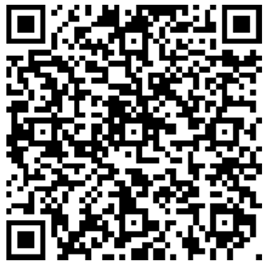
Set up LZDV Pisotab as Device Owner with no PC and no ADB. Open this page on a phone, then scan the QR during tablet setup.
Factory reset required.
Device Owner can only be set on a wiped / brand-new tablet.
Existing apps, accounts, and data will be erased.
Initial installation
- Factory reset the tablet (or use a new one out of the box).
- Power on and wait for the Welcome / Hi there / language screen.
- Tap the same spot on the welcome screen 6 times to open the QR scanner.
- Connect to Wi‑Fi first when the tablet asks (recommended), or fill Wi‑Fi below so the QR includes it.
- Scan this QR code. Android downloads the Test DPC app, installs it, and sets Device Owner.
- Select USE FOR WORK ONLY then Accept & continue.
- Click Finish.
- Click More until it gets to bottom then click Accept.
Pisotab software installation
- Scan the QR code to download the official pisotab software LZDV_Pisotab_QR_V3.4.apk.
- Install the downloded pisotab apk. Press Done.
- After pisotab apk installed. Open Test DPC app.
- Navigate to bottom and look for Transfer Ownership.
- Click Transfer ownership to component.
- Select com.example.coinstream/com.example.coinstream.receivers.AdminReceiver.
- Click TRANSFER.
- LZDV Pisotab software will open. Tap to upper right corner, Admin access dialog will appear. default password is admin123.
- Allow all permissions ask.
- Navigate to the Permissions tab and confirm that the Device Owner indicator is highlighted in green.
- Grant all other permissions. make sure all permissions are granted to avoid future errors.
- Go to System Tools and select Check for Updates. Download the latest software build.