
1 Unbox and prepare
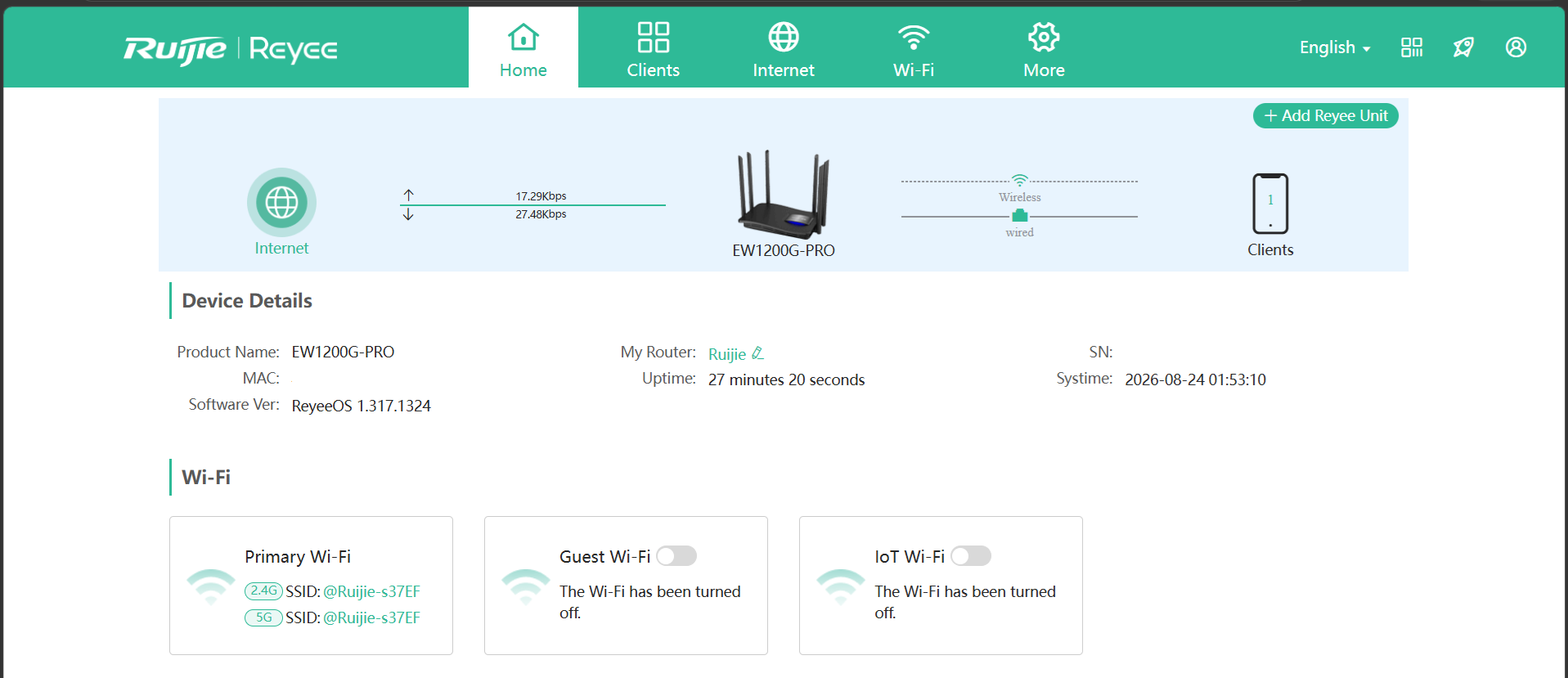
Make sure the router works out of the box on stock ReyeeOS, then download ReyeeOS 1.317 and the Lazy PisoWiFi .bin before step 2 (out-of-box → 1.317 → Lazy bin).
What you need
- Ruijie RG-EW1200G Pro router and 12V power adapter
- Ethernet cable from PC to router LAN port (ports 1, 2, or 3 - not the WAN/internet port)
- Windows laptop or PC
First power-on (factory software)
- Plug in the router and connect your PC to a LAN port.
- On the PC, set network to automatic IP (default Windows setting).
- Open a browser and go to http://192.168.110.1
- Log in with the password on the router label (often admin).
- If a setup wizard appears, you can skip or use defaults - you will replace this software later.
- Confirm System (or Tools) → Local Upgrade is available on the factory page.
Page does not open?
Set PC IP manually: 192.168.110.2, subnet 255.255.255.0, gateway 192.168.110.1. Turn off WiFi on the PC so only the cable is used. Check that the LAN port light is on.
Download files to your PC
Ensure both files are downloaded and located within the same folder before proceeding.
| File | Where to get it |
|---|---|
| ReyeeOS 1.317 (zip, inner file ends in _encrypto.tar.gz) | Official Reyee 1.317 firmware - unzip and keep the P317 encrypto tar.gz |
| LazyFi router file (Stable, LazyFi_Ruijie_RG-EW1200G_Pro_V0.1.22.bin) | LazyFi V0.1.22 Stable Firmware |